Google Ads now uses Gemini to suggest keywords, write ad text, recommend bids and answer questions through its Ads Advisor assistant. Accept suggestions that fix problems, such as broken tracking or policy issues. Test suggestions that change targeting or bidding on one campaign first. Decline anything that spends more without a clear link to your goal.
This guide sorts the most common Google Ads AI suggestions into three groups, accept, test and decline, and gives you a five-question check to run before you click Apply on anything.
Last checked: 4 October 2026, against Google Ads Help and the Google Ads blog.
Key takeaways
- Gemini powers Ads Advisor, the conversational campaign builder, AI-written ad text and many recommendations.
- Ads Advisor asks for your approval before it changes anything. Auto-apply recommendations do not, once you switch them on.
- Your optimisation score shows how many of Google’s suggestions you have accepted. A higher score does not by itself mean better results.
- Accept fixes, test expansions, decline extra spend that is not tied to your goal.
Where Gemini shows up in Google Ads
Gemini works behind four parts of Google Ads that small advertisers meet most often.
- Ads Advisor: an AI assistant inside your account that answers questions, suggests creative ideas, explains performance and helps fix policy issues. Google says it is available to all English-language accounts and that it “will ask for approval before taking action in your account.”
- Conversational campaign building: describe your business and website in plain words, and Gemini suggests keywords, headlines and descriptions for a new Search campaign.
- AI-written assets: new headlines, descriptions and images, including text customisation inside AI Max for Search.
- Recommendations: the Recommendations page suggests changes to bids, keywords, budgets and ads, and some can be applied automatically if you allow it.
Which Google Ads AI suggestions should you accept?
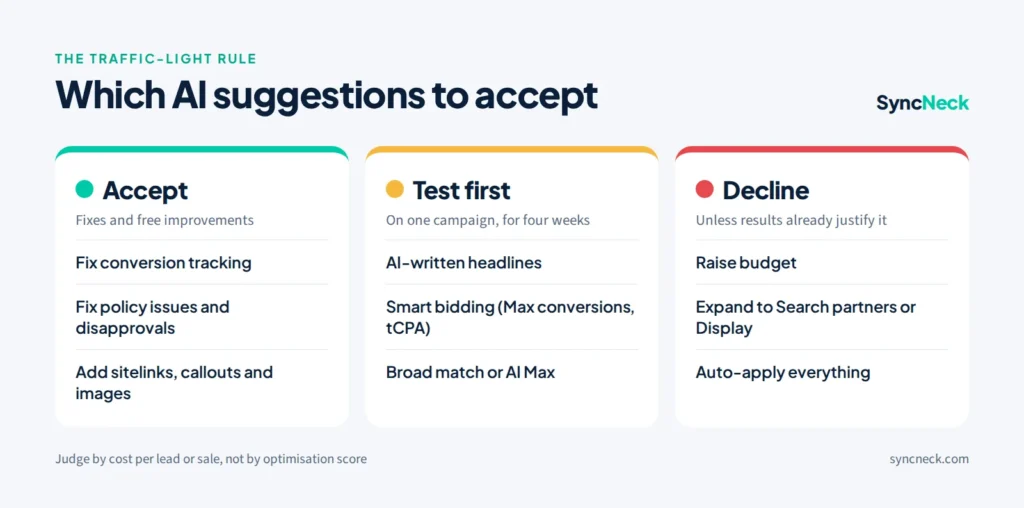
Use a simple traffic-light rule: green for fixes, amber for anything that changes who sees your ads or how much you bid, and red for anything that mainly increases spend. The table below covers the suggestions small advertisers see most.
| Suggestion | Our advice | Why |
|---|---|---|
| Fix conversion tracking or set up enhanced conversions | Accept | Every AI feature learns from conversions. Bad tracking makes every other suggestion worse. |
| Fix a policy issue or disapproved ad (via Ads Advisor) | Accept, after reading the fix | Ads that do not run earn nothing. Check the suggested wording is true for your business. |
| Add sitelinks, callouts or images | Accept, after review | More useful ad space at no extra cost. Remove any asset with an offer you do not have. |
| New AI-written headlines and descriptions | Test | Often good ideas, but check claims, prices and tone before they run. |
| Switch to Maximize conversions or Target CPA | Test on one campaign | Works best with steady conversion data. A common rule of thumb is 30 or more conversions a month. With very few, results can swing. |
| Add broad match keywords or turn on AI Max | Test on one campaign | Can find new customers, but needs negative keywords and weekly checks of search terms. |
| Raise your budget | Decline, unless results justify it | Only raise budget for campaigns already hitting your cost-per-lead or ROAS target. |
| Expand to Search partners or Display network | Decline for now | Usually lower quality traffic for small local advertisers. Test later, separately. |
| Turn on auto-apply for all recommendations | Decline | You lose the chance to review changes that affect spend and targeting. |
The 5-question check before you click Apply
Before accepting any AI suggestion, ask five questions. If you cannot answer yes to the first two, decline or test it on a small scale.
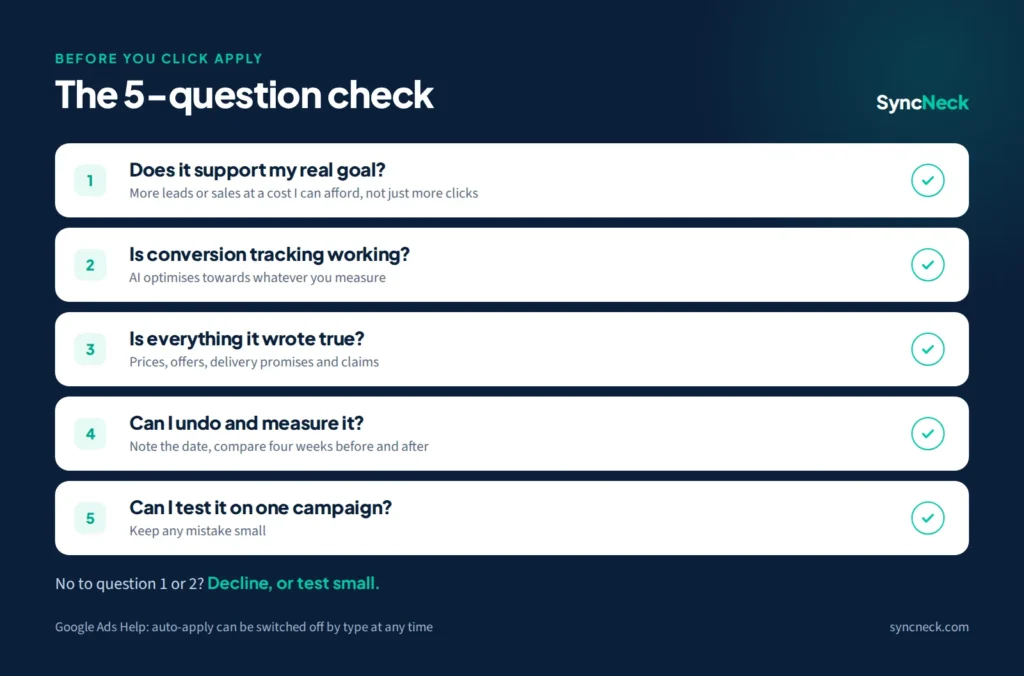
- Does it support my real goal? More clicks is not a goal. More enquiries or sales at a cost you can afford is.
- Is my conversion tracking working? If not, fix that first. AI optimises towards whatever you measure.
- Is everything it wrote true? Check every AI-written headline for prices, offers, delivery promises and claims you cannot back up.
- Can I undo it and measure it? Note the date you applied it, and compare four weeks before and after.
- Can I test it on one campaign first? Trying a change on one campaign keeps a mistake small.
How to control auto-apply recommendations
Open Recommendations, click Auto-apply, and switch on only the types you are happy for Google to change without asking. Google lets you turn auto-apply on or off for each type of recommendation at any time. A safe starting point for small accounts is to leave everything off, review recommendations once a week, and only automate low-risk items such as removing redundant keywords.
Google also changed one auto-apply rule this year. Since 26 January 2026, the “Add responsive search ads” recommendation no longer automatically creates new ads, so AI-written ad text now needs your review before it goes live through that route.
Does a higher optimisation score mean better results?
No. Optimisation score is Google’s estimate of how well your account is set up to perform, and it rises as you accept recommendations. A score of 100% can still lose money if the suggestions do not fit your business. Judge changes by cost per lead, cost per sale or return on ad spend, not by the score. If you are new to these numbers, start with our PPC guide.
Good ways to use Ads Advisor
Ads Advisor is most useful as a fast analyst, not an autopilot. Prompts that work well:
- “Which search terms cost the most last month without a conversion?”
- “Why was this ad disapproved, and what is the simplest fix?”
- “Compare cost per conversion for mobile and desktop over 30 days.”
- “Suggest five headlines for our dental clinic in Hyderabad that do not mention prices.”
Read its answers, check the numbers in your reports, and only approve the actions you understand.
Quick answers
What is Ads Advisor in Google Ads?
Ads Advisor is a Gemini-powered assistant inside Google Ads. It answers questions about your account, suggests ideas and helps fix policy issues, and it asks for your approval before taking action.
Should I turn on auto-apply recommendations?
For most small accounts, no. Review recommendations weekly instead, and only automate low-risk types. You can switch auto-apply on or off for each type at any time.
Does a higher optimisation score improve my ads?
Not by itself. Optimisation score is Google's estimate of how well your account is set up and rises as you accept recommendations. Judge changes by cost per lead or sale.
Are AI-written Google Ads headlines safe to use?
They are often useful, but check every headline for prices, offers and claims before it runs, and test them alongside your own ads.
Follow the latest Google Ads and AI changes on our AI in digital marketing page, or read our guide to AI Max for Search.