SEO course › Part 1: SEO foundations
Using GA4 for SEO means using Google Analytics 4 to see what visitors from organic search do after they land on your site. Search Console shows how people find you in Google. GA4 shows which pages they visit, how engaged they are, and whether they take actions you care about, such as filling in an enquiry form.
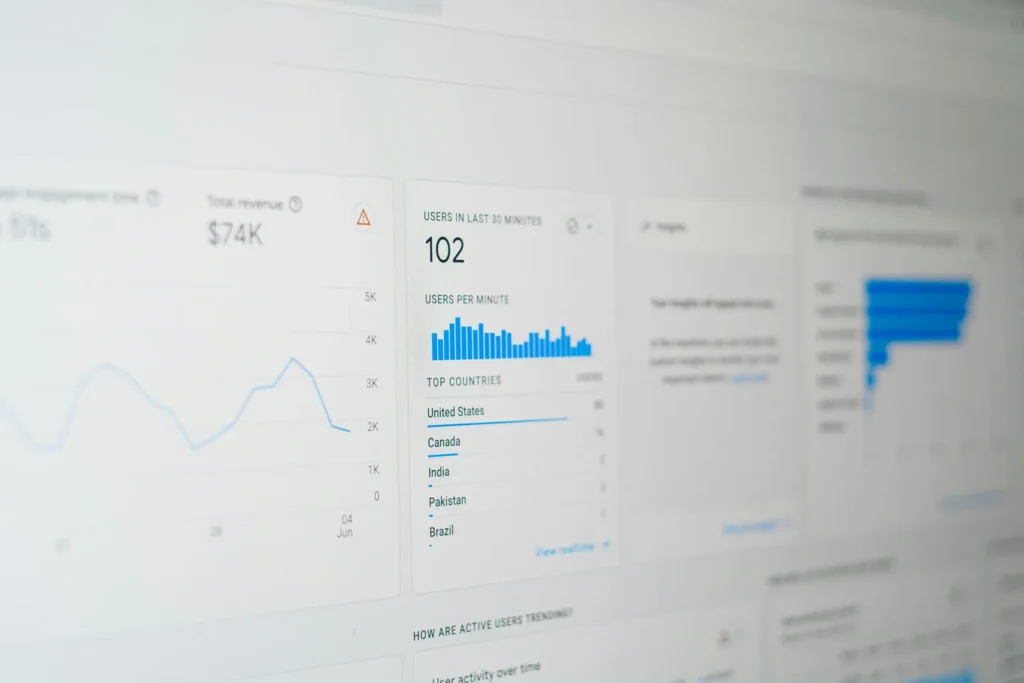
This lesson covers what GA4 is, how to set it up, which reports matter for SEO, how to link it with Search Console, and the mistakes beginners make most often.
What is Google Analytics 4 and why does it matter for SEO?
Google Analytics 4 (GA4) is Google’s free web analytics tool. Web analytics simply means measuring and understanding how people use your website.
GA4 replaced Universal Analytics, the older version, which stopped processing data in July 2023. If you read an older tutorial that talks about “bounce rate as the main metric” or “goals”, it was probably written for Universal Analytics.
For SEO, GA4 answers questions that rankings alone cannot:
- How many visits come from organic search (unpaid results) each month?
- Which pages do search visitors land on first?
- Do those visitors stay, read and act, or leave quickly?
- Is organic traffic growing or shrinking over time?
This lesson focuses on the SEO side. For a fuller walkthrough of every GA4 feature, see our web analytics guide to GA4.
How does GA4 measure your website?
GA4 is built on events. An event is any interaction that GA4 records, such as a page view, a scroll, a click or a form submission.
A few terms you will see everywhere:
- Session: a group of interactions by one visitor within a period of time.
- Engaged session: a session that lasted longer than 10 seconds, had a key event, or had at least two page views.
- Engagement rate: the share of sessions that were engaged. It is a more useful signal than the old bounce rate.
- Key event: an event you mark as important, such as a purchase or a booking. Google renamed “conversions” to “key events” in GA4 in 2024.
GA4 also has enhanced measurement, which automatically tracks page views, scrolls, outbound clicks, site search, file downloads and some video and form interactions without extra code.
How do you set up GA4 on your website?
Setting up GA4 takes about 15 minutes for most small sites.
- Sign in to Google Analytics with your Google account and create an account for your business.
- Create a property. A property is the container for one website’s data. Set your reporting time zone to India and currency to rupees if that is where you operate.
- Add a web data stream by entering your website address. Keep enhanced measurement switched on.
- Install the Google tag (a small piece of tracking code) on every page. You can paste it into your site’s header, add it through Google Tag Manager, or use a plugin such as Site Kit by Google on WordPress.
- Open the Realtime report and visit your own site on your phone to confirm data is arriving.
- In Admin, change data retention from the default two months to 14 months, so your explorations can compare longer periods.
- Mark your important actions, such as form submissions or WhatsApp button clicks, as key events.
Which GA4 reports matter most for SEO?
You do not need every report. These three cover most SEO questions.
Traffic acquisition
Go to Reports, then Acquisition, then Traffic acquisition. Set the dimension to “Session default channel group” and look at the Organic Search row. This shows sessions, engagement rate and key events from unpaid search results across Google, Bing and other engines.
You may also notice visits from AI assistants appearing as referral traffic. Keep an eye on them alongside search, as our article on how AI Overviews affect traffic explains.
Landing page report
Under Engagement, the Landing page report shows the first page of each session. Add a filter for the Organic Search channel to see which pages search brings people to.
Explorations
Explorations let you build custom tables. For example, you can compare organic landing pages by engagement rate and key events over the last six months.
How do you link GA4 with Google Search Console?
GA4 cannot show the search queries people typed. Google hides that data in analytics tools. Google Search Console is where query data lives.
Linking the two gives you both views in one place:
- In GA4, open Admin, then Product links, then Search Console links.
- Choose the verified Search Console property and the matching web data stream.
- Open the Library in Reports and publish the Search Console collection so the reports appear in your menu.
You will then see a Queries report and a Google organic search traffic report that combine clicks and positions from Search Console with engagement data from GA4.
| Question | Best tool |
|---|---|
| Which keywords show my site in Google? | Search Console |
| How many clicks did each page get from Google? | Search Console |
| Did organic visitors stay and engage? | GA4 |
| Did organic visitors book, buy or enquire? | GA4 |
A worked example: a Hyderabad bakery
Imagine a small bakery in Hyderabad with a website listing cakes and an online order form. The owner writes a blog post on eggless birthday cakes.
In Search Console, the post starts getting impressions for “eggless cake Hyderabad”. In GA4’s Landing page report, filtered to organic search, the owner sees the post has a healthy engagement rate but almost no order form key events.
The fix is not more SEO. It is a clear “Order an eggless cake” button inside the post. A month later, GA4 shows key events from that landing page rising. That is GA4 for SEO in practice: turning traffic into business results.
Common mistakes to avoid
- Installing the Google tag twice (for example, in the theme and in a plugin), which double-counts page views.
- Leaving data retention at two months and then losing detail for year-on-year comparisons.
- Judging SEO only by traffic and never setting up key events.
- Forgetting to filter out your own team’s visits, which can inflate numbers on a small site.
- Expecting keyword data in GA4 instead of linking Search Console.
Key takeaways
- GA4 shows what organic visitors do after they arrive; Search Console shows how they found you.
- Engagement rate and key events matter more than raw page views.
- Use Traffic acquisition and the Landing page report, filtered to Organic Search.
- Link GA4 with Search Console to see queries and behavior side by side.
- Set data retention to 14 months and mark your important actions as key events.
For more starter habits, read our SEO tips for beginners.
Frequently asked questions
Is GA4 free to use for SEO?
Yes. The standard version of GA4 is free and is enough for almost every small business and blog. A paid version, Google Analytics 360, exists for very large companies.
Does GA4 affect my Google rankings?
No. Google has said it does not use Google Analytics data to rank pages. GA4 helps you measure and improve your site, but installing it does not boost rankings.
Why do GA4 and Search Console show different numbers?
They measure different things. Search Console counts clicks from Google Search results, while GA4 counts sessions, which can be affected by consent choices, ad blockers and how sessions are defined.
Previous lesson: Google Search Console: a beginner’s guide to setup and key reports
Next lesson: Bing Webmaster Tools: set up Bing and reach other search engines